
STARTER LIST
Six foods are ready from the start
Peanuts, eggs, cow’s milk, wheat/gluten, soy, and fish each appear as separate items on the list.
Start with six foods and add others as needed. You choose each food’s status; foods marked as a reaction are also added to Health Passport.



Each food shows the status you saved: Untested, Safe or Reaction. Change it directly in the list or add a food that is missing.
See how it looks in the appPeanuts, eggs, cow’s milk, wheat/gluten, soy, and fish each appear as separate items on the list.
Enter a food name in the custom field. A new item starts as Untested and can be removed from the list later if you no longer need it.
For each food, choose Untested, Safe, or Reaction. Tapping the same status again returns the item to Untested.
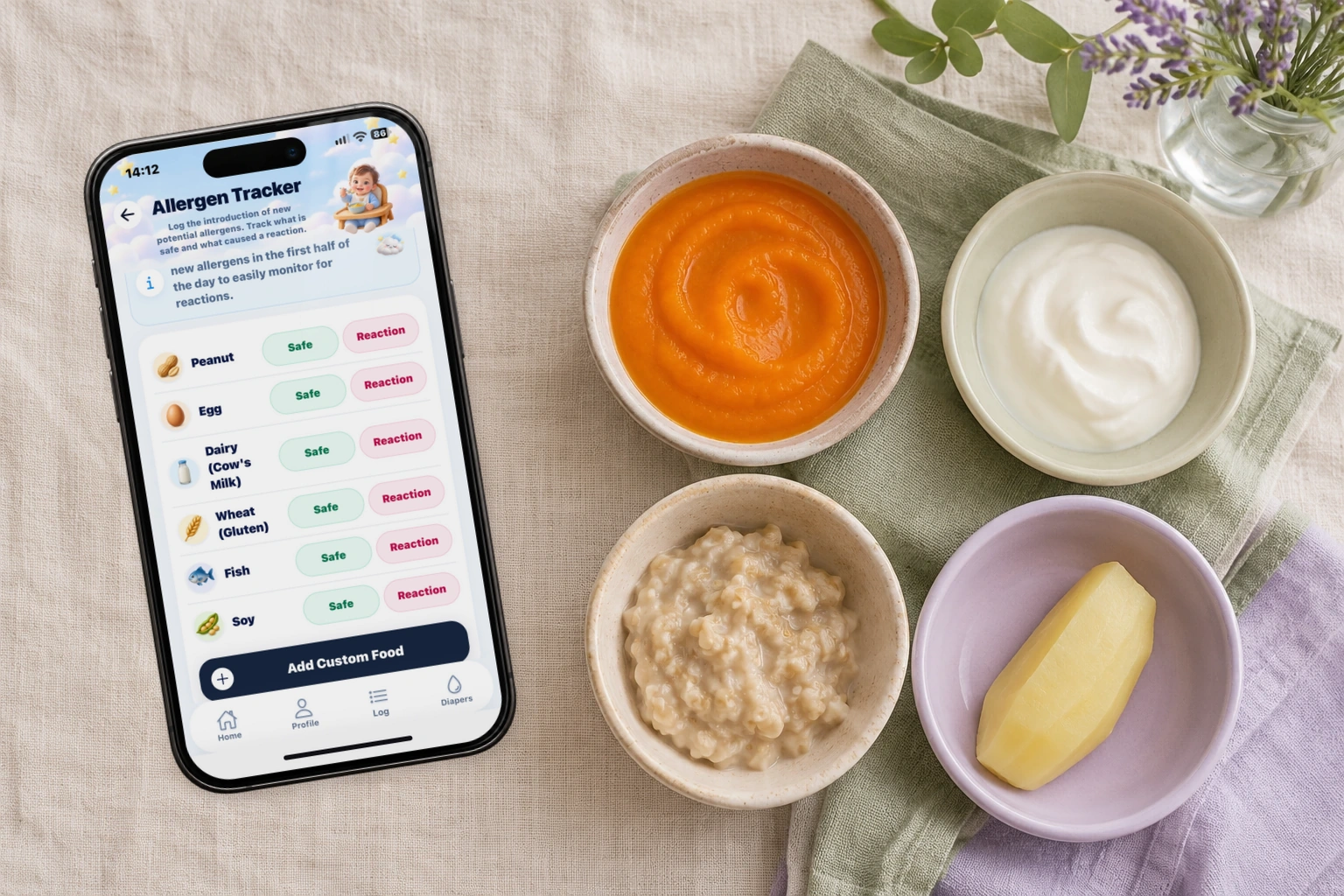
Check its status or add a new entry.
food name · selected status
Trusted information, expert advice and practical guides to caring for your child and supporting their health and development.

Each food has one of three statuses. Tap Safe or Reaction beside the food name. Tap the same button again to return it to Untested. The list saves the change, and selecting Reaction also updates the linked information in Health Passport.
Every item follows a simple path: starter list or custom entry, selected status, then an updated Health Passport when you mark a Reaction.
You do not need to enter them first. Open an item when you want to track it, update its status as needed, or add another food of your own.
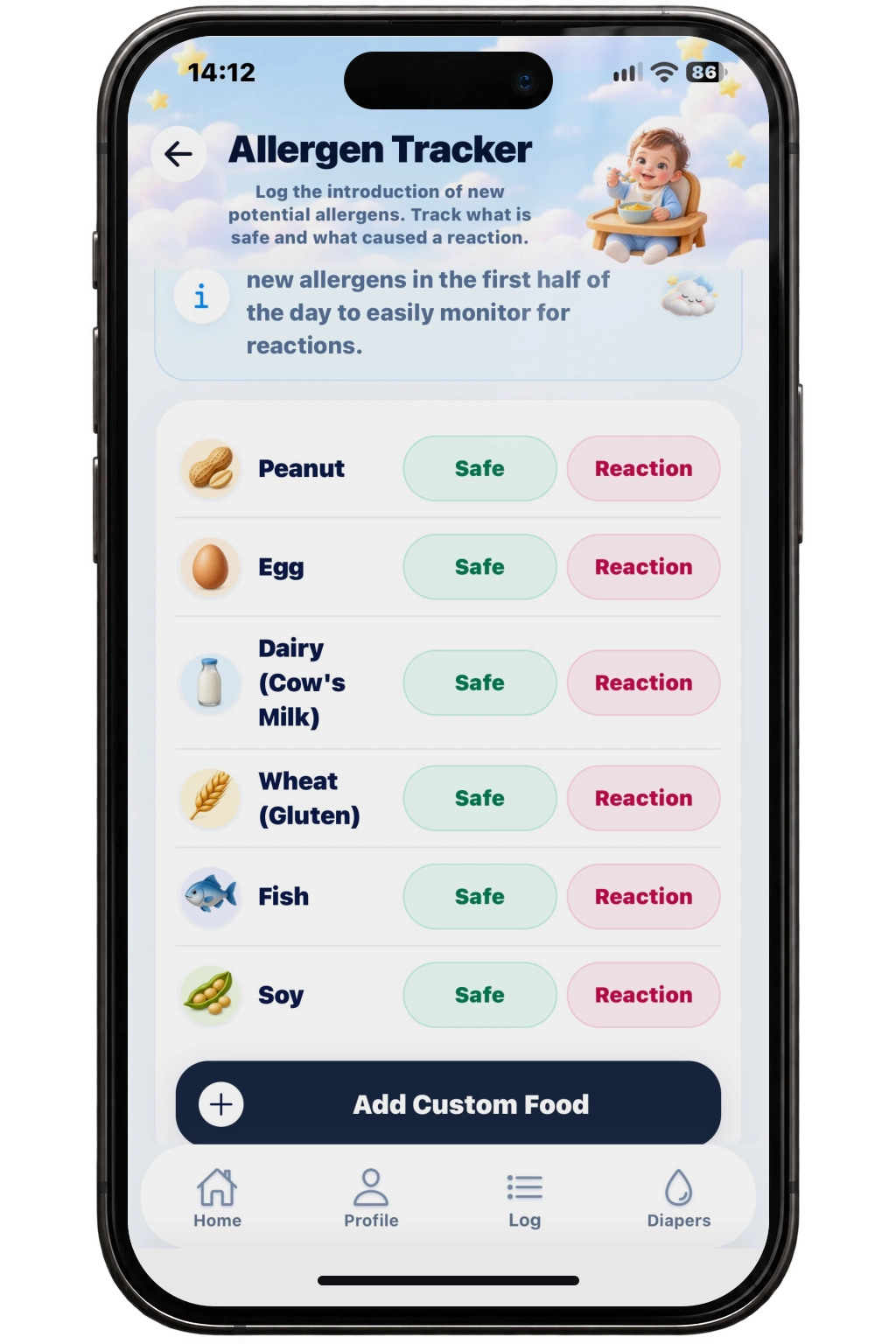
Peanuts, eggs, cow’s milk, wheat/gluten, soy, and fish are available without any additional setup.
Enter the food you want to add. You can later assign a status or remove the item if you no longer need it.
Tap the status button beside a food to save it. Tap the same status again to return the item to Untested.
Foods marked as Reaction are synchronized with the allergies field in Health Passport, so you do not need to type the same name again.
When you reopen Allergen Tracker, your foods and previously saved statuses return.

You do not need to fill in the list each time you open it. Previously saved foods and statuses reappear, so you only need to make the additions or corrections you want.
Type its name in the custom food field. The new entry starts as Untested, and you can change its status later. You can also remove a custom entry.